| |
 n this article, we show you how to search OLDMEDLINE,
browse the results, and save the results to a file.
n this article, we show you how to search OLDMEDLINE,
browse the results, and save the results to a file.
Let's imagine that you are writing a history of the use of shock therapy
for the treatment of depression. You are interested in searching
OLDMEDLINE for journal literature from the late 1950s and early 1960s.
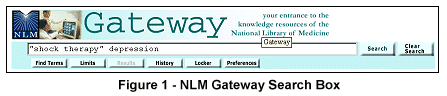
- Enter your search terms (e.g., shock therapy and depression) in the Gateway search box just underneath the Gateway banner as shown in Figure 1.
Please note that multi-word search terms must always be entered in quotes (e.g., "shock therapy").
This example is not a comprehensive search strategy; it has been simplified for this article. The controlled vocabulary in OLDMEDLINE has not been updated over time and may not match current MeSH (Medical Subject Headings). Furthermore, the OLDMEDLINE vocabulary is not hierarchical and therefore cannot be "exploded." Additional terms could be added to cover synonyms and make the search more comprehensive.
- Click on the Search button, and the Results Summary page is displayed (see Figure 2).
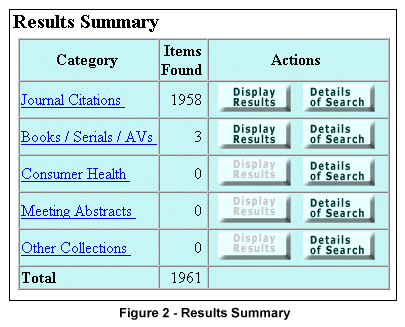
- Click on the Display Results button for Journal Citations. The Results page for Journal Citations is displayed as in Figure 3.
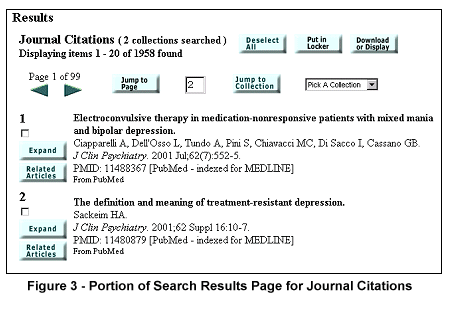
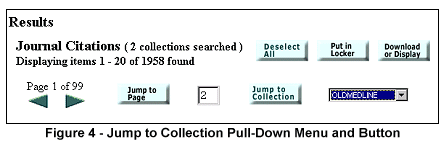
- PubMed citations are shown first. To navigate directly to OLDMEDLINE citations, use the Jump to Collection button. Set the pull-down menu to OLDMEDLINE, and click on the Jump to Collection button as shown in Figure 4.
- The Results page for OLDMEDLINE citations is displayed (Figure 5).
Note the first item number (i.e., 1764), as it will be required for saving OLDMEDLINE
citations. For browsing results, the arrows navigate forward and backward through the pages and the Jump to Page button allows you to go directly to a specific
page number.
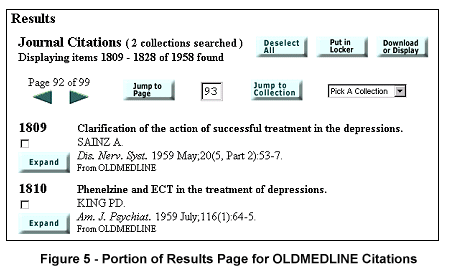
- To view or save a set of results, click on the Download or Display button available on the Results page (as shown in Figure 5).
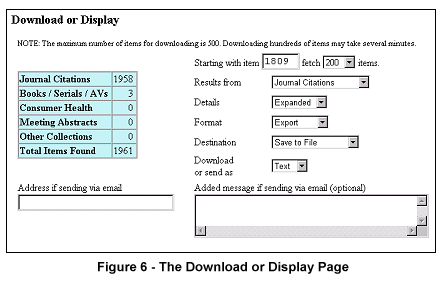
- The Download or Display page is displayed. You want all the items found in OLDMEDLINE on your topic, and you want to save the results to a file to import into a bibliographic manager program.
- Enter 1809, the first OLDMEDLINE citation, in the "Starting with item" box.
- Change the items to be fetched to 200.
- Change Destination to Save to File.
- Change Details to Expanded.
- Change Format to Export.
- Click on the Go button (see Figure 6).
The Expanded Format provides a more complete display of the item. The Export format labels each field with the field name abbreviation and is used for importing data into bibliographic management programs.
- On a personal computer (PC), A Save As... pop-up window will display which allows the user to name the file and determine the disk directory. Change the File name and Save in directory as desired, and click on the Save button. Please note that Microsoft Internet Explorer is different from Netscape and other web browsers. Internet
Explorer will display the download results as text in your browser window, leaving you to save it yourself by using Internet Explorer's "File ... Save As" command.
Further details on searching the NLM Gateway are available in Help on the sidebar.
By Sonya Shooshan
Lister Hill National Center for Biomedical Communications

Shooshan S. How to Search OLDMEDLINE Using the NLM Gateway. NLM Tech Bull. 2001 May-Jun;(320):e7.
|
|


