

| ||
| October 5, 2000 [posted] | ||
| Hands On: Registering for the PubMed Cubby | ||
|
his is the first in a series of Hands On Cubby articles. The next Hands On Cubby will show you how to store searches. For a complete overview of the Cubby, see Cubby help. The Cubby, a new service for PubMed and the other Entrez databases, stores information for you. The two features the Cubby currently provides are:
In order for the Cubby to store information specific to you, it must be able to recognize you. This is done by registering a User Name and Password which you use to Login to the Cubby. In this Hands On we show you how to create your Cubby account by registering for the Cubby. We also show you what to do if you've forgotten your password or want to change it as well as how to login and log out of the Cubby.
Registering for the Cubby
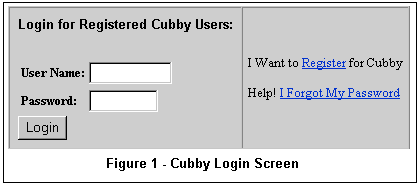
On the Cubby Registration screen (see Figure 2) create the following information, then click Register:
User Name, Password and security word (i.e., Mother's Maiden Name or Pet's Name) are all case-sensitive. Make sure you enter these in a manner that you can easily remember. Write down and save this information so that you can refer to it later. NLM does not store your User Name or Password. 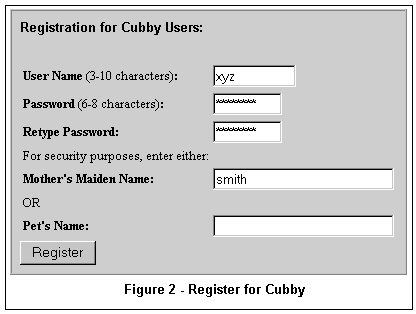
Logging In 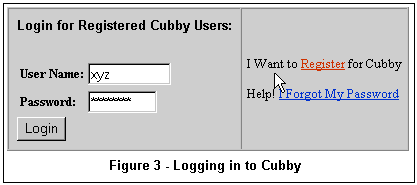
Forgot Your Password? 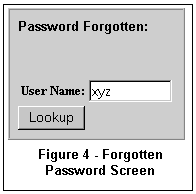
On the Check Identity screen (see Figure 5) enter your security word (i.e., Mother's Maiden Name or Pet's Name). Click Check. Once this information is verified, the Cubby assigns you a new Password. Make a note of your new Password as you will need it to Login to the Cubby, and you will also need it if you want to change your password to something you can easily remember. If you forget your User Name, the Cubby cannot assist you. You may re-register under a new name; however, you will have to store your searches and specify your LinkOut preferences again. 
Changing Your Password 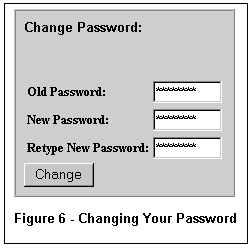
Log Out
Stay Tuned
By Margaret McGhee 
McGhee M. Hands On: Registering for the PubMed Cubby. NLM Tech Bull. 2000 Sep-Oct;(316):e3. | ||

