

Table of Contents: 2019 MARCH–APRIL No. 427
Hutcherson L. My Bibliography Version 3.0. NLM Tech Bull. 2019 Mar-Apr;(427):e6a.
|
[Editor's note: The new version was released on May 1, 2019.]
My Bibliography is an application developed by the National Library of Medicine (NLM) to help you organize citations to your publications and to assist eRA Commons users with managing publication or product compliance with the NIH Public Access Policy. My Bibliography version 3.0, the redesigned and rebuilt new version to be released soon, includes useful new tools and a streamlined interface that facilitates a workspace where you can quickly view your publications' compliance status, initiate submissions to the NIH Manuscript Submission system (NIHMS), and organize your publications and awards data using the new searching, filtering, and sorting options.
My Bibliography's streamlined interface displays options to manage citations, add citations, search, and sort at the top of the page (see Figure 1). The unique URL to share your bibliography with others is also found at the top of the page.
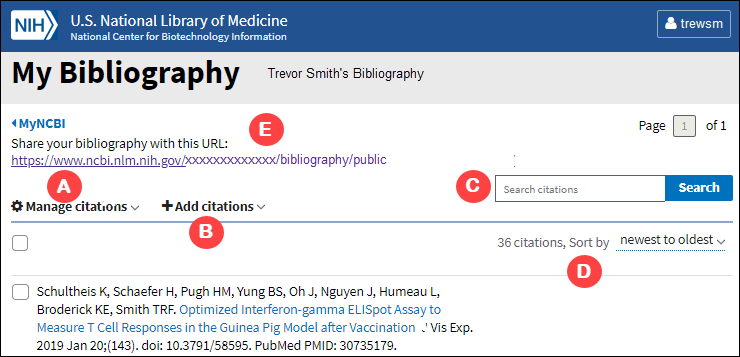
There are three options to add author-specific article citations: using the My Bibliography citation search tool to find citations in PubMed, uploading citations from a file, or using My Bibliography templates to create citations manually.
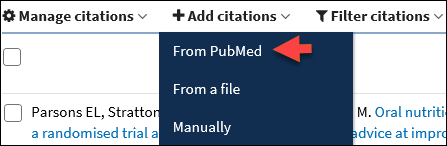
Click "Add citations." Select "From PubMed" to open the My Bibliography search tool (see Figure 2).
In the search tool, enter an author full name, last name and initials, article title, article DOI, or PubMed citation ID (PMID) and click "Search PubMed" (see Figure 3).
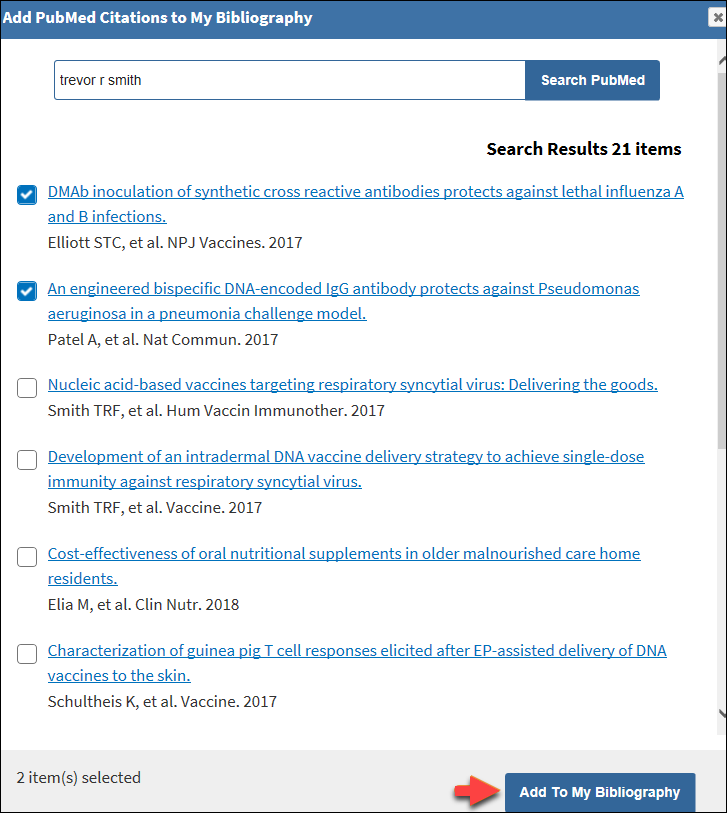
Select the citations you wish to add to your My Bibliography collection and click "Add to My Bibliography." Close the window and the newly added citations will immediately display in My Bibliography.
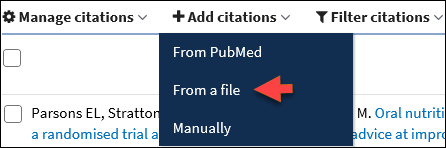
Click "Add citations" and select "From a file" to use a MEDLINE or RIS formatted file to upload your article citations to your My Bibliography collection (see Figure 4).
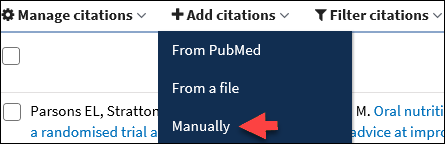
Click "Add citations" and select "Manually" to use My Bibliography templates to create citations for publications not found in PubMed (see Figure 5).
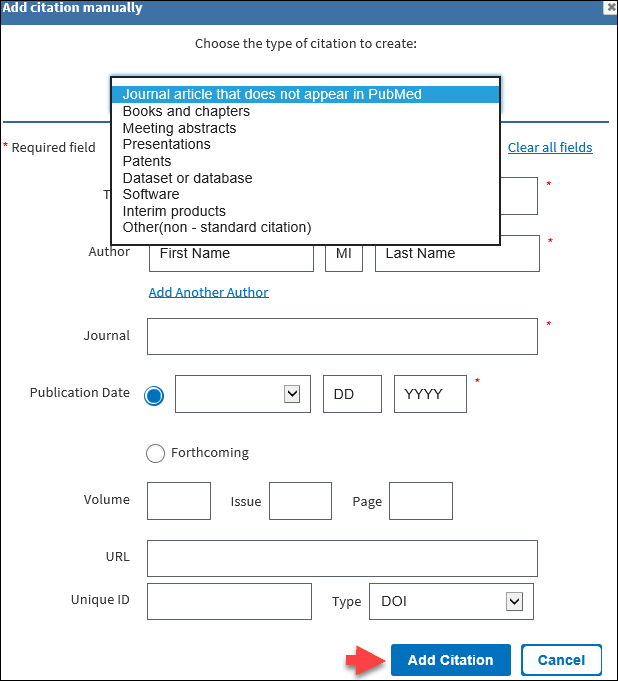
Select a citation template for the publication or product to be entered manually and enter the publication or product information in the fields provided. My Bibliography has multiple templates with fields pertinent to each type of publication or product (see Figure 6).
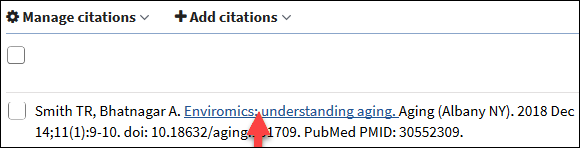
My Bibliography displays citations added through any of the above methods. Citations from PubMed have hyperlinked article titles that lead to the full PubMed record (see Figure 7).
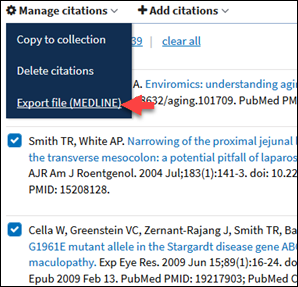
Citations stored in My Bibliography can be downloaded in MEDLINE format by checking the boxes next to the citations that you wish to include in an export file and selecting the option "Export file (MEDLINE)" in "Manage citations" (see Figure 8).
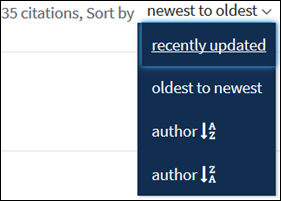
In My Bibliography, citations can be sorted by author name (either in ascending or descending order), by publication date (newest to oldest or oldest to newest), or by recently updated citations (see Figure 9).
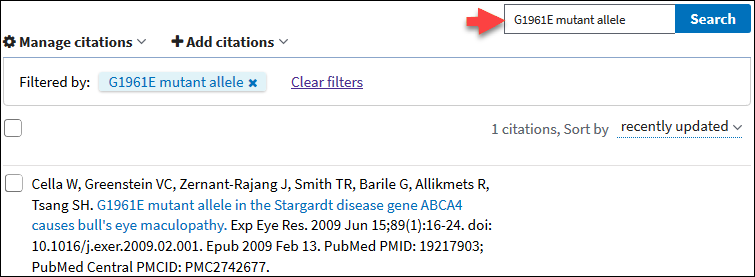
Locating citations in My Bibliography can be accomplished with ease by entering article PMCID, citation PMID, article title words, author name, DOI, or journal title in the search box (see Figure 10).
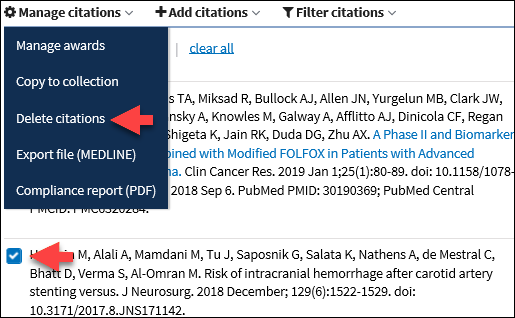
Check the boxes next to the citations to delete, click "Manage citations," and select "Delete citations." Deleted citations will no longer display in your publicly available bibliography or SciENcv (see Figure 11).
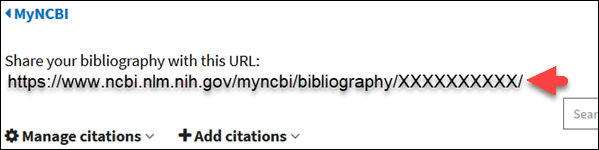
Citations stored in My Bibliography can be shared with others using the personal URL displayed at the top of the page (see Figure 12).
The public version of My Bibliography displays all the citations currently stored in your bibliography. Citations in this public page can be sorted by recently updated, newest to oldest, oldest to newest, and author name in descending or ascending order.
This article continues with more information for eRA Commons users in My Bibliography Version 3.0 for eRA Commons Users.
By
Lidia Hutcherson
National Center for Biotechnology Information


 My Bibliography Version 3.0